Bookings
Bookings represent a scheduled time slot chosen by a parent or caregiver as part of an event. While bookings are central to many Schoolea events, they're not always required.
The information contained within a booking may vary depending on the type of event. For example, bookings for a uniform fitting event won't be assigned a staff member.
Registration-only vs. bookings
Some event types allow you to choose whether bookings are required:
- Registration only - Attendees register and provide information, but don't select a specific time slot. This is useful when you just need to collect details without scheduling appointments.
- Registration with bookings - Attendees register and then book one or more time slots. This is the traditional Schoolea experience for scheduled appointments.
Viewing bookings
- Click on the Bookings option in the main menu.
- Choose the event you want to view.
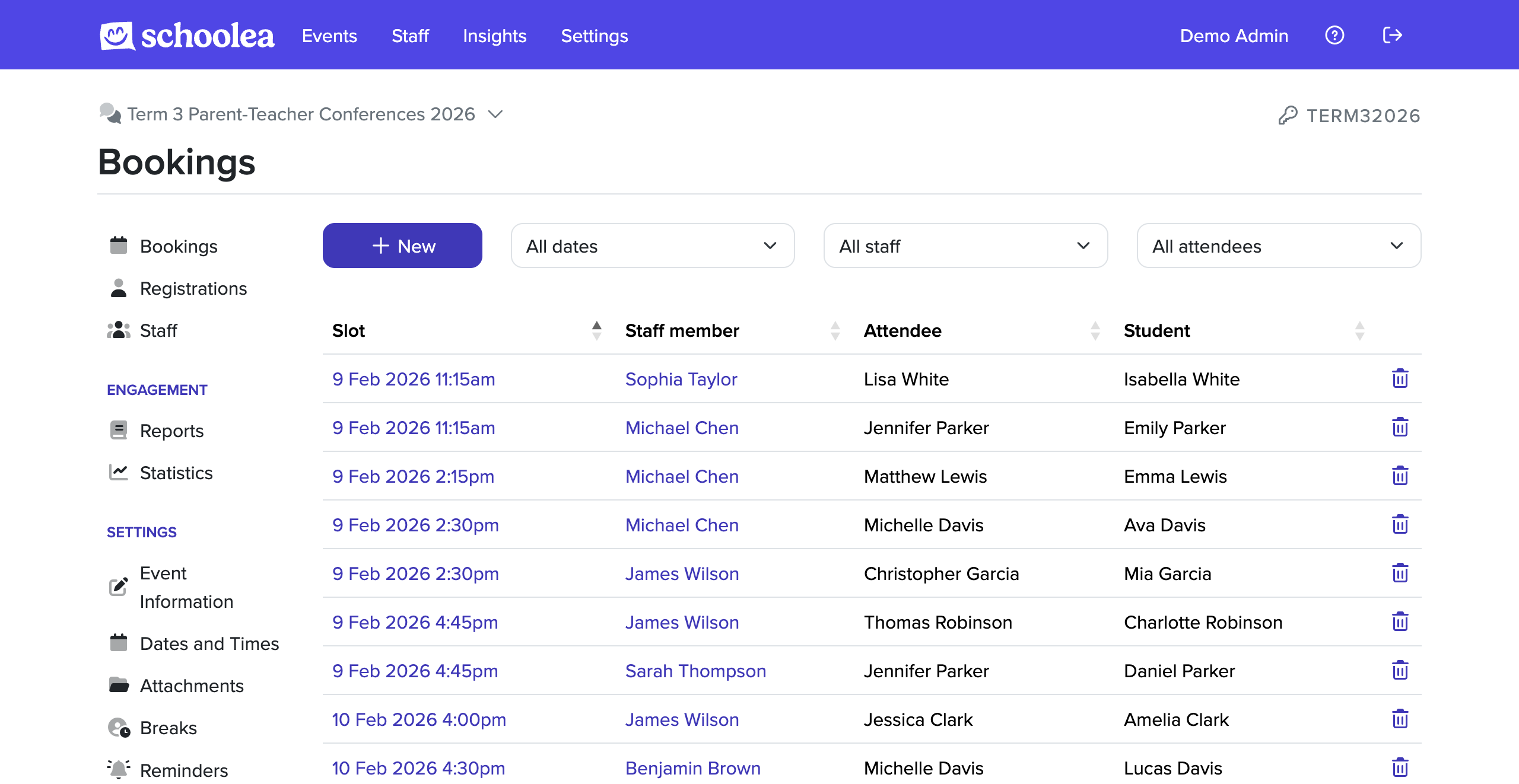
You'll be presented with the list of bookings for an event. From here, you can:
- filter the bookings based on the attendee, date, or staff member.
- download the list of bookings.
- view an individual booking.
Viewing an individual booking
When viewing the list of bookings, click on the date and time of a booking to view more information about it, including:
- the contact information for the attendee.
- the other bookings for the attendee.
- any booking comments left by the attendee.
From here, you can also make additional bookings on behalf of the attendee.
Downloading a timetable
From the Bookings page, you can download the list of bookings shown as either a PDF file or a CSV file by using the Download Timetable button.
You'll be able to choose the file format and orientation of the document (PDF only)
Cancelling a booking
If you need to cancel a booking for an attendee, click on the trash-can icon when viewing the list of bookings.
You'll be asked to confirm the cancellation before it takes effect. Once cancelled, other attendees will be able to make a booking for that time.
Rescheduling bookings to a different date
If your event has bookings on a date that was removed, you can bulk reschedule all bookings and staff breaks from one date to another.
This is accessible from the Dates and Times settings page for your event. If any bookings exist on dates that are no longer part of the event, a warning will be shown with a link to the rescheduling tool.
How it works
- Choose the from date and the to date (where you want them moved).
- Choose what to do when a booking cannot be moved because the target time slot is already full:
- Leave the booking on the original date: the booking stays where it is.
- Move it anyway: the booking is moved even if the slot is over capacity.
- Cancel the booking: the booking is cancelled.
- Optionally send email notifications to affected attendees:
- Notify moved attendees: sends an email to each attendee whose booking was successfully moved, including the old and new times.
- Notify cancelled attendees: sends an email to each attendee whose booking was cancelled due to a conflict.
- Each notification can include an optional custom message.
- Review a summary of how many bookings will be moved, left in place, or cancelled before confirming.
Attendees will only receive a notification if they have email notifications enabled.
Staff breaks on the original date are also moved to the corresponding time on the new date where possible.