Event staff
For certain Events, such as parent-teacher conferencing, you'll need to add one or more staff members to the event so parents and caregivers can book with them.
Staff that are added to an event can sign in and view their bookings, and will receive any reminder emails before the event starts.
Each staff member on an event can be set to either in-person or online, and you can mix the two within a single event. For in-person staff, you can give them a room that is shown to attendees on their timetable, such as the name of their classroom. Online staff meet their attendees over a built-in video meeting that is prepared automatically. When a staff member has a default room or mode set on their staff record, those defaults are used when they are added to a new event, though you can still override either for that event if needed.
See in-person and online bookings for more detail on how the modes work.
Adding or removing staff from an event
- Visit the Events section in the main menu.
- Click on the name of the event.
- Click on Settings > Staff.
- Make any changes as required, and click Save.
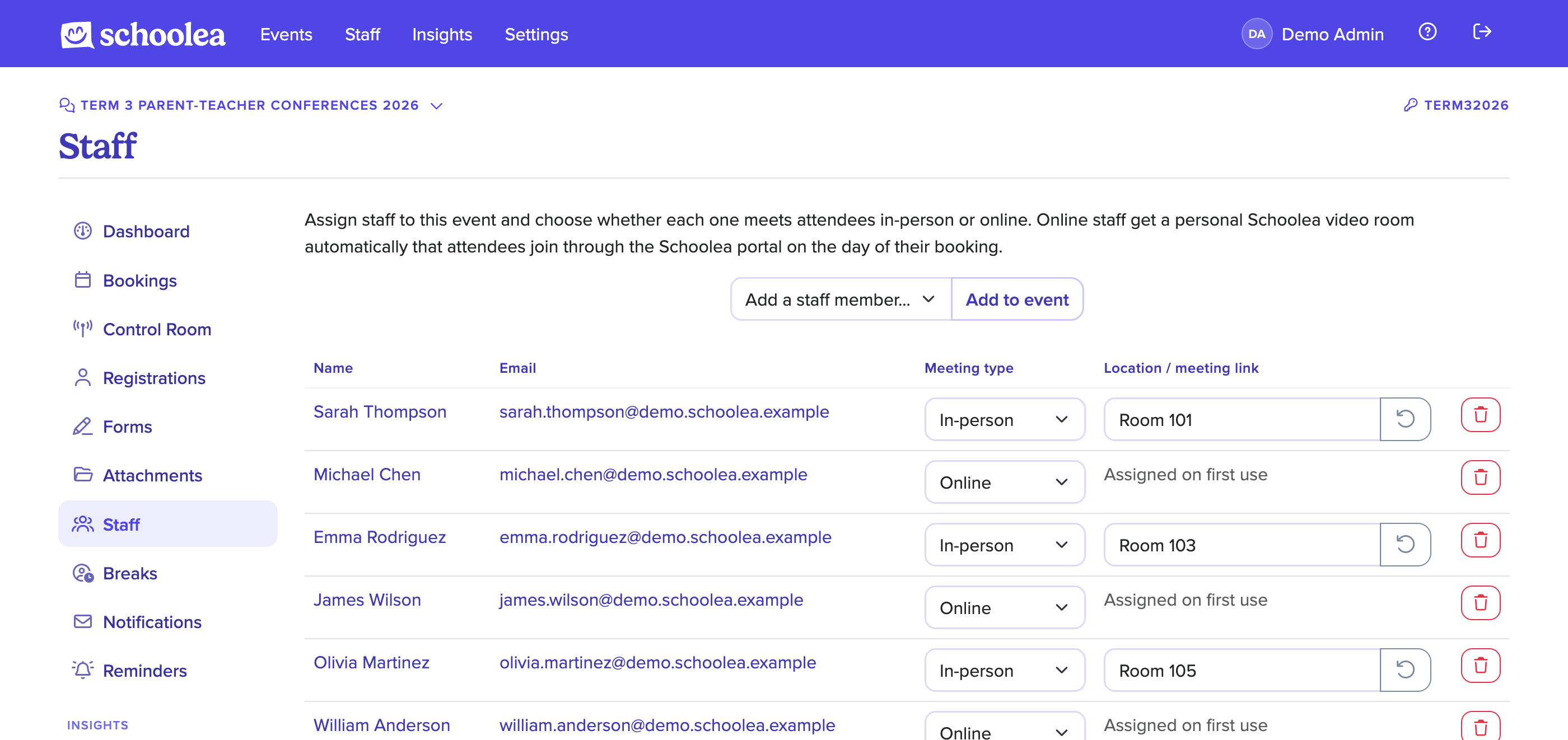
If the staff member has a default room set on their staff record, you can use the refresh icon to reset their room for this event back to that default.